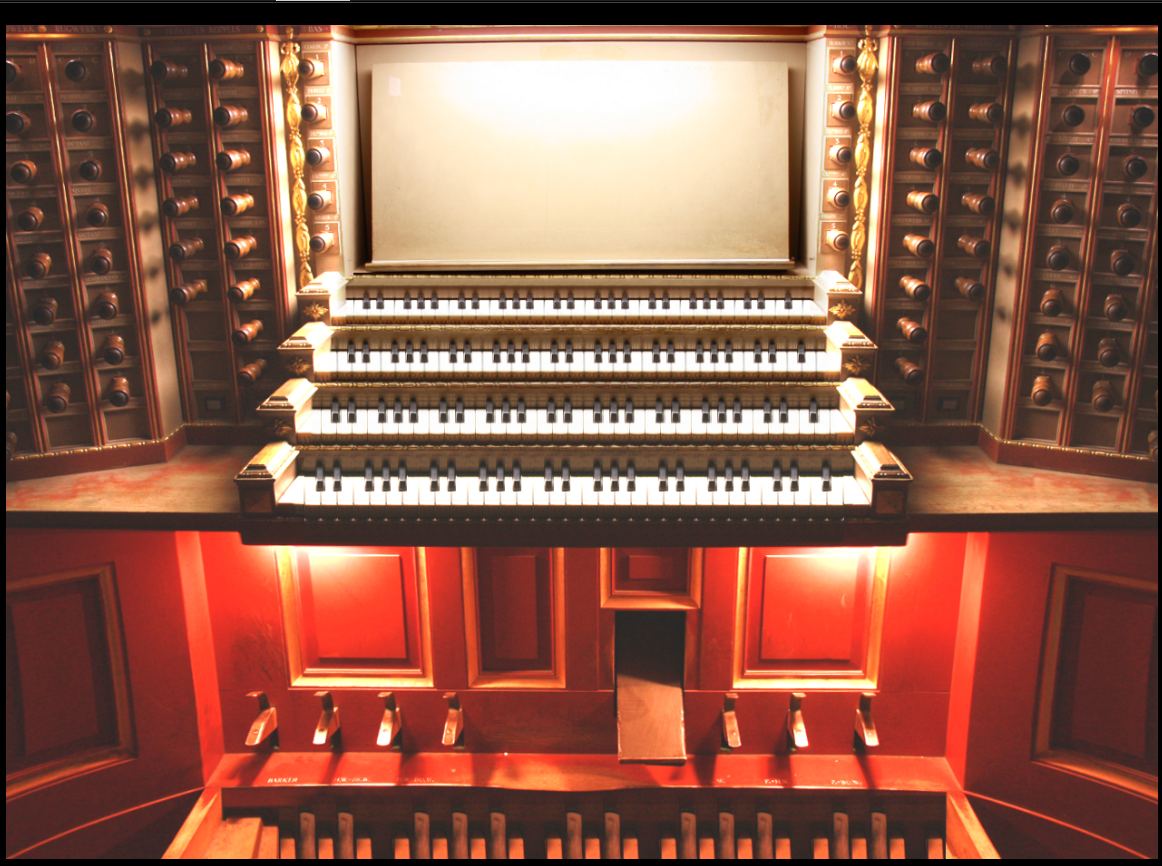
Console view:
this is the general console view. It serves to define the keyboard MIDI inputs for all the divisions. The only active part of this view are the manuals and the pedal. All the other components are image-only. Specifying the keyboard MIDI input is done by right-clicking on the desired manual or pedal.
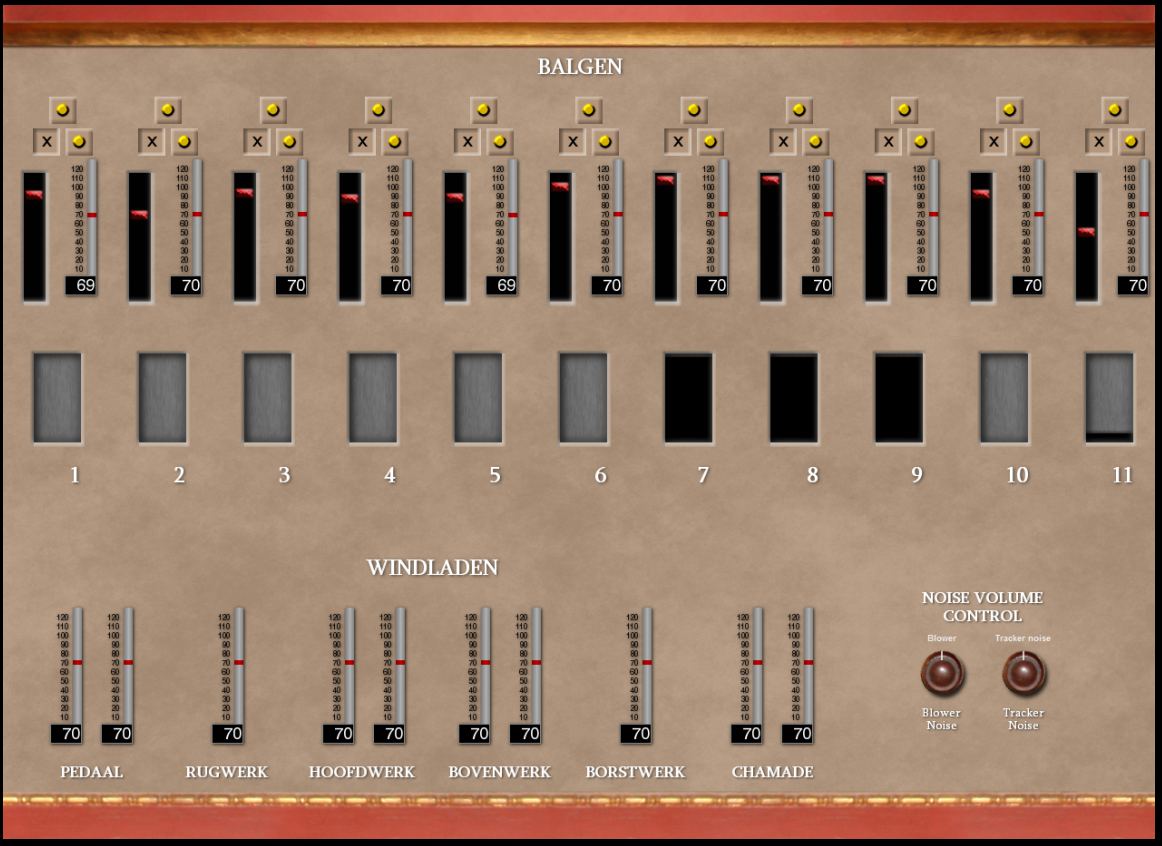
Bellows+Noise view:
this is the view of the wind ways of the instrument, the base for the Hauptwerk wind model. In the upper part, there are 11 hand pumped wedge bellows, the red indicator shows how full/empty the bellow is, the gauge on the side shows the inner pressure inside the bellows. The switches above each bellow show the operation of the bellows. The upper one served to enable or disable the bellows completely (you can run only several bellows if you wish - attention, the organ can become short of air quickly). The lower two buttons show whether the bellows is inflating (left button) or deflating (right button).
The small "windows" under each set of bellows show how air is going from the bellows to the windchests of the organ. If it is closed, no air is going to windchest, if it is open, air is going from the bellows to the windchest.
In the lower corner of this wiew, there are gauges to measure the pressure each of the windchest (some divisions have split windchests).
Finally, in the right bottom of the window, there are two knobs. By turning these knobs you can increase or decrease the noise generated by the blower or by the tracker.
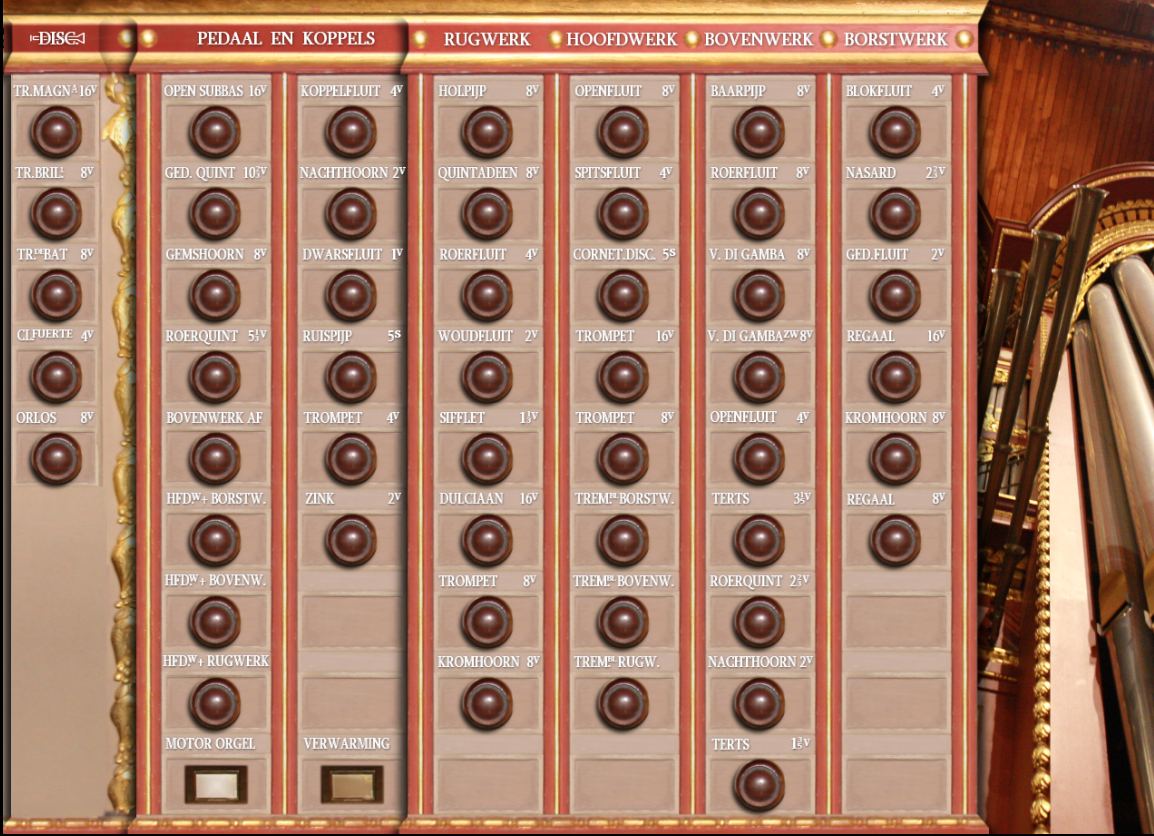
Left+Right Jambs view:
for dual touch screens, split jambs were created. They allow for portrait or landscape orientation, according to the orientation of the touch screens.
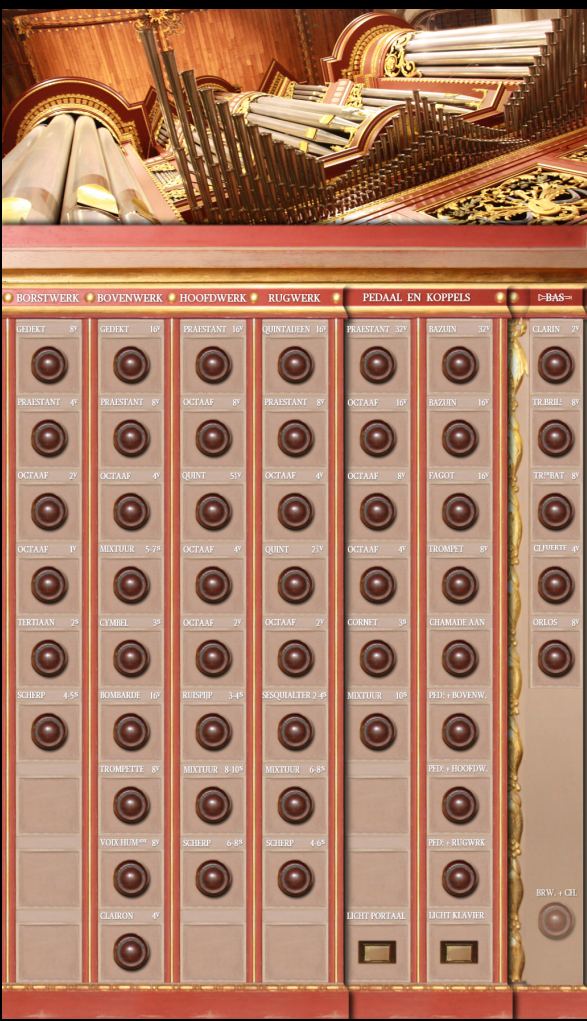
the dual stop jambs offer vertical (portrait) orientation as an alternative.
Single Jamb:
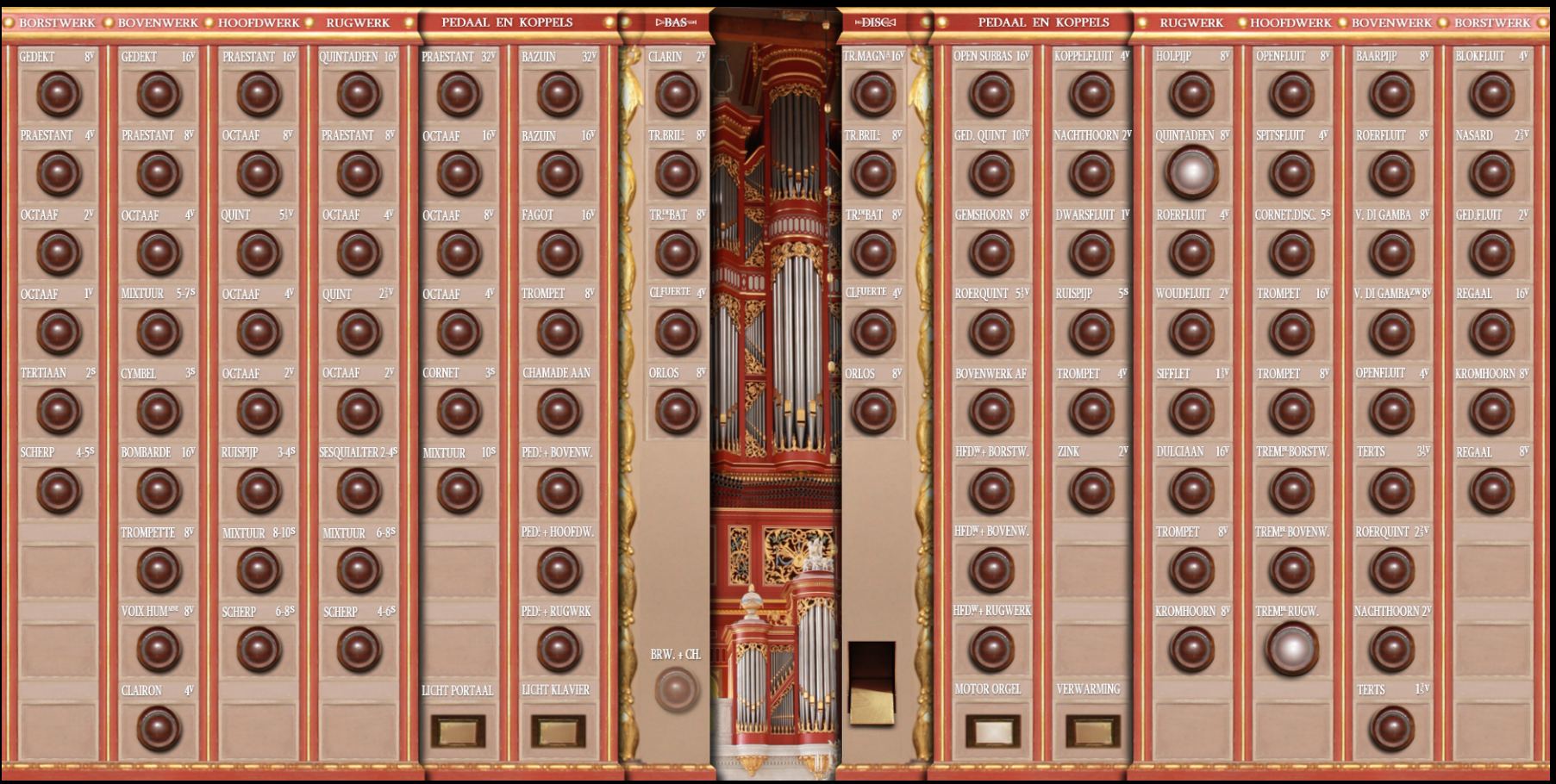
for a single touch screen, this is the stop jamb to be used. All the stops of the organ can be found there. This view allows for landscape and wide landscape oritantion, according to the size of the touchscreen used. Please note, that the foot levers found on the original organ were not reproduced, since they only duplicate hand drawstops which are available. All features of the organ can be controlled by the drawstops, hence the foot levers were omitted. You may, however, attach your MIDI foot pistons to any drawstop to imitate the behavior of the original organ. The attaching of the physical piston to a button on screen is done by right-clicking on the button. You may attach more than one MIDI physical switch to any of the drawstops on the screen.
Voicing:
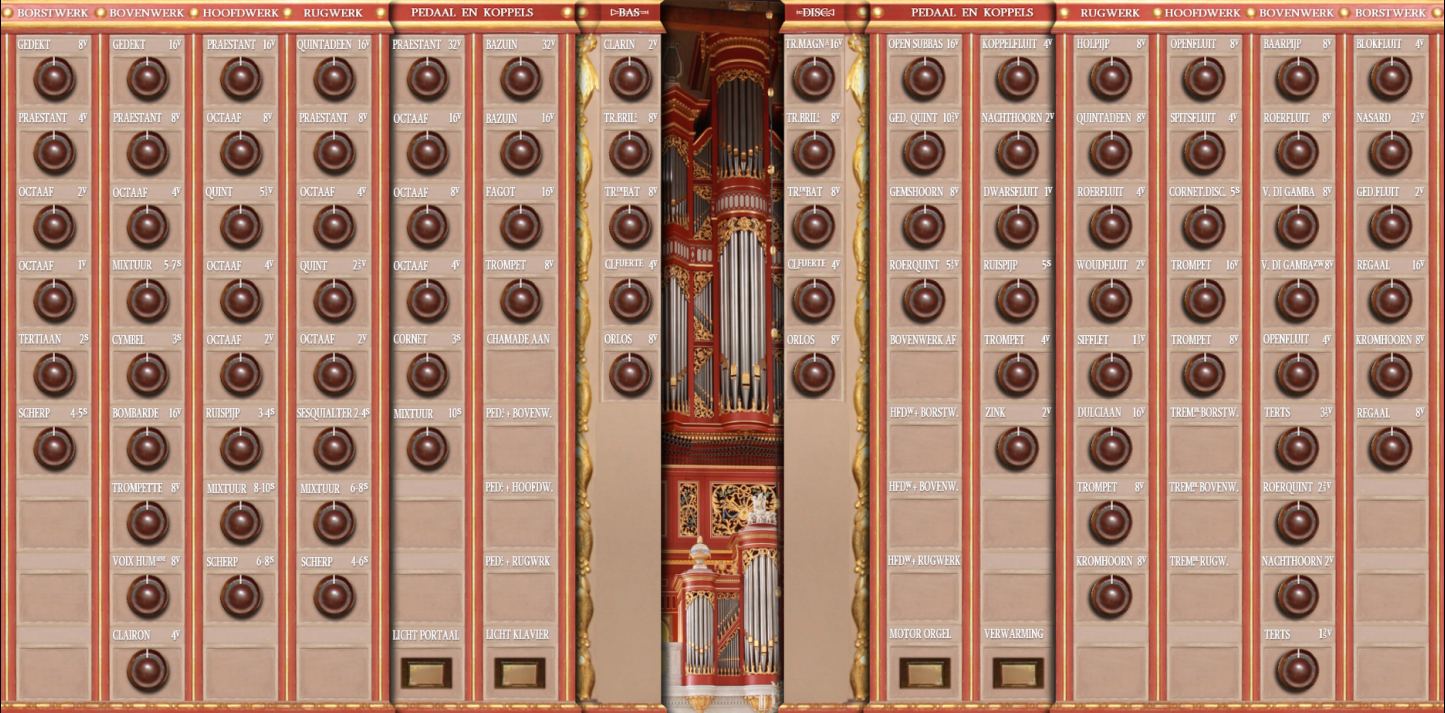
this is the dedicated Sonus Paradisi easy voicing tab. Here you can alter the timbre (volume and color) of each of the stops to suit your liking.
Detuning:
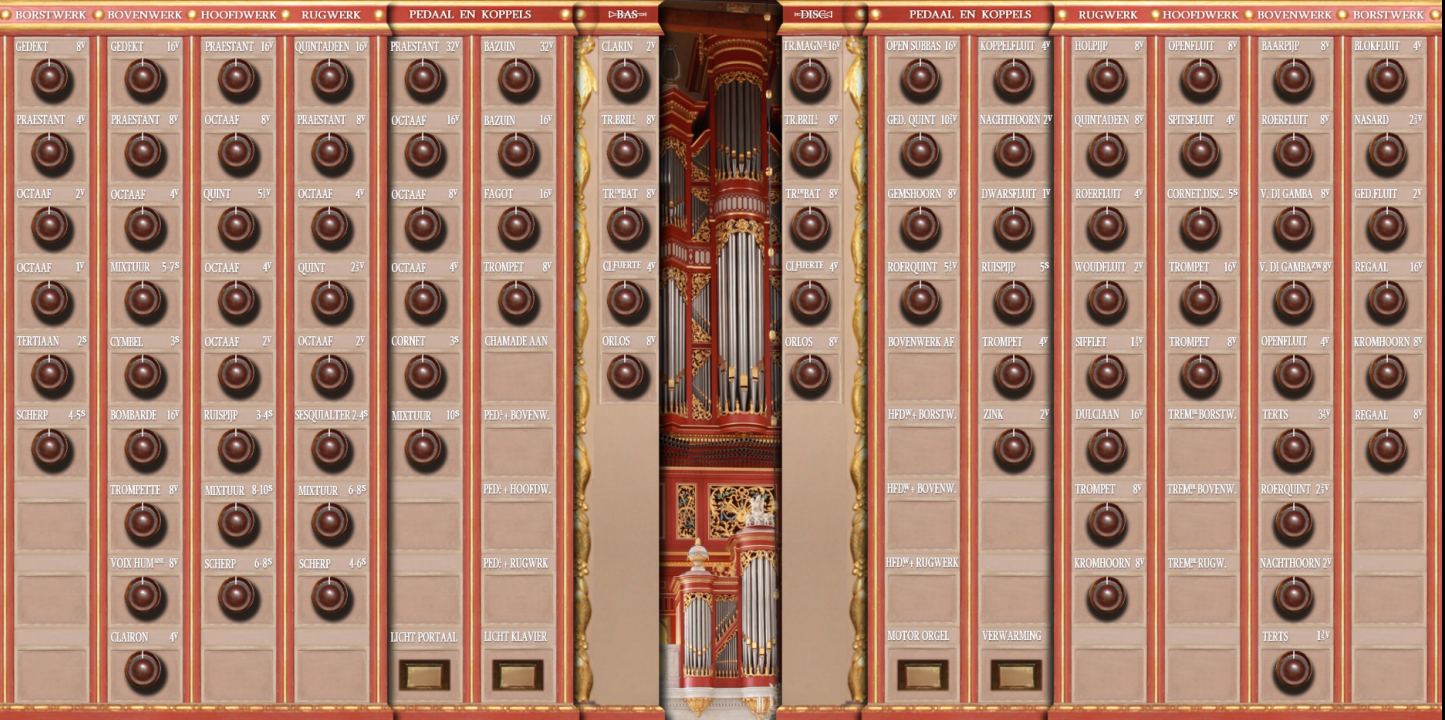
this is the detuning tab. You can alter the pitch of entire rank by turning the knob. This is allowed for each stop of the organ. You may thus make a celeste stop out of any stop of the organ (including creating an undulating trumpet - well, not very useful). By changing the pitch only very little you may, however, achieve some pitch strechting of the organ, and the overall sound may become more lively.